Ad Blocker For FirefoxHow to Turn off an Ad Blocker for One Site in Firefox: 6 Steps
How to Turn off an Ad Blocker for One Site in Firefox: 6 Steps
The short answer
To turn off an ad blocker for one site in Firefox, reload the page and click the shield or extension icon in the address bar. Choose the option to pause or disable on this site, then refresh. If the page is still broken, check whether Enhanced Tracking Protection is the cause and turn it off for that site in Protection Settings. Only the site you choose is affected.
Some links on this site are affiliate links: if you buy through one, the site may earn a commission at no extra cost to you. More about this.
You want a page that loads properly, a video that plays, or a checkout that works, and you want to get there without switching your blocker off everywhere. This guide walks through six steps, from the quick pause in the toolbar to the tracking protection setting that often causes the problem on its own.
Most sites that break with an ad blocker on are fine once you allow them. The steps here cover the common ways that happens in Firefox, including the case where the blocker is not the culprit at all.
I use this approach on sites I trust, and I would rather allow ads on a few of them than lose a page to a blocker that is too strict. Pausing for one site keeps the protection in place everywhere else, which is the part I care about most.
By the end, you will be able to pause a blocker for a single site, restore it afterwards, and tell whether the blocker or Firefox's built-in tracking protection is the reason a page is misbehaving.
Quick steps:
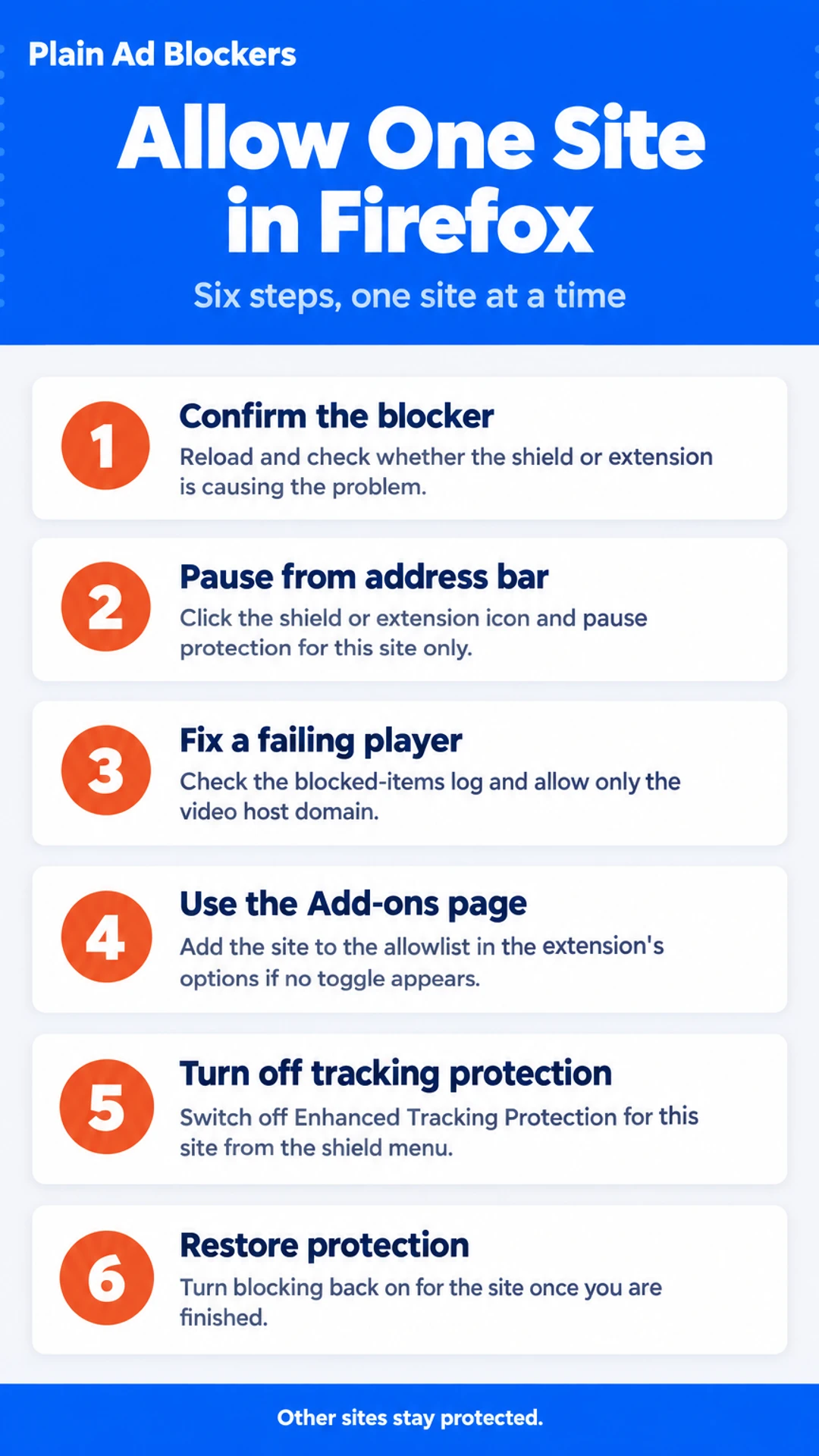
- Confirm the ad blocker is the cause
- Pause protection for this site from the address bar
- Fix a video player that still fails
- Use the Add-ons page if the option is missing
- Turn Enhanced Tracking Protection off for one site
- Put protection back once you are done
Step 1: Confirm the ad blocker is the cause
Before you change any settings, make sure the blocker is actually the problem. Pages break for many reasons, and turning off protection you don't need can expose you to more ads and tracking than necessary.
Start by looking at what went wrong. Common signs include:
- A video that will not start, or spins forever
- A blank box or missing section where content should be
- A login page that keeps sending you back to the login screen
- A message such as "Please disable your ad blocker"
Next, check the address bar. In Firefox, a shield icon means Enhanced Tracking Protection is working. An extension icon, such as uBlock Origin or Adblock Plus, shows that an add-on is active. [screenshot: Firefox address bar with shield and extension icons]
Then run a quick test. Open the page in a private window with Ctrl+Shift+P (Cmd+Shift+P on a Mac). Extensions are usually off in private windows unless you have allowed them. If the page loads properly there, the blocker is the likely cause.
If the page is broken in a private window too, the blocker may not be the cause. Try reloading, clearing the cache, or checking whether the site is down for everyone.
Step 2: Pause protection for this site from the address bar
Most of the time, you can turn off blocking for one site without opening any settings. Firefox gives you a shortcut right in the address bar.
Start on the page that is causing trouble. A video may not play, a form may not submit, or a menu may not open. Then do this:
- Click the shield icon on the left side of the address bar. If you use an ad blocker extension, you may see its own icon there instead.
- In the panel that opens, find the toggle that turns protection off for this site. Switch it off.
- If you only see a basic protection option, click the settings link in the panel. This opens Protection Settings, where you can make the change for this site.
If an extension is responsible, click its icon in the toolbar. Look for a choice such as "Pause on this site" or "Disable on this site." The exact wording depends on the extension, so read the menu carefully. Pick the option that names only this site.
Next, reload the page. The change often does not apply until you refresh, so press F5 or click the reload button.
[screenshot: the shield icon in the Firefox address bar with the protection toggle for the current site visible]
Once the page works, you are done. Other sites stay blocked, and the rest of your browser is unchanged.
Step 3: Fix a video player that still fails
If the player still won't load after you pause the blocker, the cause is usually a third-party domain. The video often comes from a separate server, and your blocker may be stopping it even though the main page is allowed.
Start by reloading the page. Pause the blocker for this site, reload, and wait for the player to load fully before you test it. Give it a few seconds. Many players show a spinner for a moment before they start.
If it still fails, find the domain that is being blocked:
- Click the blocker's [screenshot: toolbar icon in Firefox, showing the blocked-items or logger view]
- Open the blocked-items list or log for this tab
- Look for entries with a name that does not match the site, such as a video host or a CDN
For example, a news site might embed its video from a separate video host. The log may show that host, not the news site, as the blocked item. Note the exact domain name.
Then allow only that domain, if your blocker supports it. Most do, through a per-domain or "allow" option in the log. Add that one domain and leave the rest of the site protected.
Be aware that some players depend on ad or tracking scripts that cannot be allowed separately. In that case the site may still not work, and you may need to decide whether to allow the whole site for a while.
Step 4: Use the Add-ons page if the option is missing
Some ad blockers do not show a per-site option on their toolbar icon. In that case, you can still turn off blocking for one site, but you have to go through Firefox's Add-ons page.
What you need: Firefox open, and the site you want to allow loaded in a tab.
- Click the menu button (three lines) at the top right of the browser.
- Choose Add-ons and Themes. [screenshot: Firefox menu with Add-ons and Themes highlighted]
- Click Extensions in the left column.
- Find your ad blocker in the list and click its name.
- Click Options or Preferences. Look for a section called Allowlist, Exceptions, or Whitelist, and add the site's address there.
If the blocker has no allowlist, use the last resort. Click the toggle to turn the extension off, then reload the page. This stops blocking on every site, so turn the extension back on once you are done. Use this only when the page or video player will not work any other way.
For example, if a video player on a news site will not load, add that news site to the allowlist, reload the page, and watch the video. Then return to the list and remove the site if you want blocking back.
Step 5: Turn Enhanced Tracking Protection off for one site
This step covers Firefox's own built-in protection, which blocks trackers and some ad content. It is separate from any ad blocker extension you have installed. If a page breaks or a video player fails, this is often the setting to change first.
What you need:
- Firefox on your computer, open to the site that is not working
- About a minute
How to do it:
- Go to the website you want to allow. Make sure the page is open in the active tab.
- Click the shield icon on the left side of the address bar. [screenshot: address bar with the shield icon on the left, next to the site address]
- In the panel that opens, click Protection settings or Turn off Enhanced Tracking Protection for this site. The exact label can change slightly between Firefox versions.
- Confirm the change if Firefox asks you to.
- Reload the page. Press F5 or click the reload button. The site should now load with its ads and players working.
For example, say a news site shows a blank video box after you open it. Click the shield, turn protection off for that site, and reload. The video should start. You can turn protection back on the same way when you are done.
Note that this changes only Firefox's built-in tracking protection. If you use an extension ad blocker, it has its own setting for allowing a site. You have to change that separately, in the extension's own menu or its toolbar icon.
On Firefox for Android, the menu and wording differ, and not all extensions are available there. Check the Android steps for your version before you follow this one.
Per-site pause versus turning off Enhanced Tracking Protection
| Option | Pros | Cons |
|---|---|---|
| Pause blocker on this site | Other sites stay protected | Only affects the one site |
| Turn off Enhanced Tracking Protection for this site | Quick, one click from the shield icon | Does not change extension blockers |
| Allow a single domain in the blocker log | Keeps the rest of the site protected | Some players still need the whole site allowed |
| Disable the extension entirely | Fixes any site at once | Exposes every site to ads and tracking |
Step 6: Put protection back once you are done
Once you finish with a trusted site, turn the blocker back on for it. If you skip this, the site stays unprotected and you may forget it ever changed. Here is how to do it in Firefox.
- Open the site you allowed.
- Click the shield or blocker icon in the toolbar, usually at the top right.
- Click the toggle or "Pause" option to turn protection back on for this site.
- Reload the page to confirm the ads and tracking are blocked again.
[screenshot: Firefox toolbar with the blocker icon open and the per-site toggle switched back on]
If you turned off the blocker everywhere, not just for one site, switch it back on from the extensions menu. Open the menu, find your blocker, and make sure it is enabled.
Check your allowlist now and then. For example, if you allowed a news site to fix a broken video player last month, remove it from the list when the player works again. Fewer allowed sites means more blocking, and that is usually what you want.
What to do now
- ☐ Check whether a private window loads the page properly to confirm the blocker is the cause
- ☐ Click the shield or extension icon in the address bar and pause protection for this site
- ☐ Reload the page after pausing protection
- ☐ If a video still fails, check the blocked-items log and allow only the blocked domain
- ☐ If the option is missing, open Add-ons and Themes, then add the site to the extension's allowlist
- ☐ If the page still breaks, turn off Enhanced Tracking Protection for this site
- ☐ Turn protection back on for the site once you are finished with it
- ☐ Remove the site from your allowlist when it no longer needs to be allowed
What hands-on reviewers found
These are other people's hands-on tests, summarised and credited to them. Watch the full videos for their complete reviews.
CoolTechZone: I found the best AD BLOCKER extension | 3 Tools Compared
The reviewer thinks Surfshark's CleanWeb is the best all-round ad blocker across devices, Total AdBlock is the best simple browser-only option, and Adblock Plus should be avoided by default because of its acceptable ads program and higher r
- Adblock Plus enables an acceptable ads program by default, letting companies like Google or Amazon pay to bypass block lists. The reviewer had to disable this in settings. (at 1:04)
- Adblock Plus uses more CPU and memory than other ad blockers. The reviewer, who keeps many tabs open, felt the drag and removed it after about half an hour. (at 1:20)
- Total AdBlock worked straight away after install and a tab refresh. Display ads, pop-ups, cookie banners and YouTube pre-rolls were all gone. (at 1:38)
Frequently asked questions
How to disable ad blocker for a single site?
In Firefox, open the site, click the shield icon in the address bar, and turn off Content Blocking for that site. Then reload the page. Your blocker stays on everywhere else, and only this site loads its ads and scripts.
How do I block ads on one website?
Firefox allows ads everywhere by default only if your blocker is off. To block ads on one site, leave your ad blocker on and simply keep the site's content blocking turned on. Most blockers do this automatically, so you only need to change settings for sites you choose to allow.
How do I block a single website in Firefox?
Open the site, click the shield or site icon in the address bar, and choose the option to block or turn on protection for that site. You can also add the domain to your blocker's custom filter list. Reload the page to confirm the change took effect.
How do I adjust the ad blocker settings in Firefox?
Open the Firefox menu, go to Add-ons and Themes, and select your ad blocker. Use its settings or options page to change filter lists, whitelist sites, or adjust blocking levels. Changes usually apply after you reload the page you are testing.
Why would I need to turn off an ad blocker for one site?
Some sites break when ads or scripts are blocked. Video players may fail to load, and checkout or login pages may stop working. Allowing ads on just that trusted site fixes the problem while keeping protection on everywhere else.
Conclusion
Turning off an ad blocker for one site is usually a quick fix. Which step will you try first: the shield icon, the site's content blocking toggle, or the blocker's own settings page?
If you want a blocker that works across more of your devices, Visit the official site to see what the CleanWeb ad and cookie blocker includes.