Ad Blockers for Firefox: Which to Use, What They Cost and How to Fix Breakage
The short answer
The most widely recommended ad blocker for Firefox is uBlock Origin. It is free, open source, and blocks ads, trackers and many pop-ups with low resource use. AdGuard, Ghostery and Surfshark CleanWeb are also common choices. Each has different strengths, and some have paid tiers. Install any of them from the official Firefox Add-ons site.
Some links on this site are affiliate links: if you buy through one, the site may earn a commission at no extra cost to you. More about this.
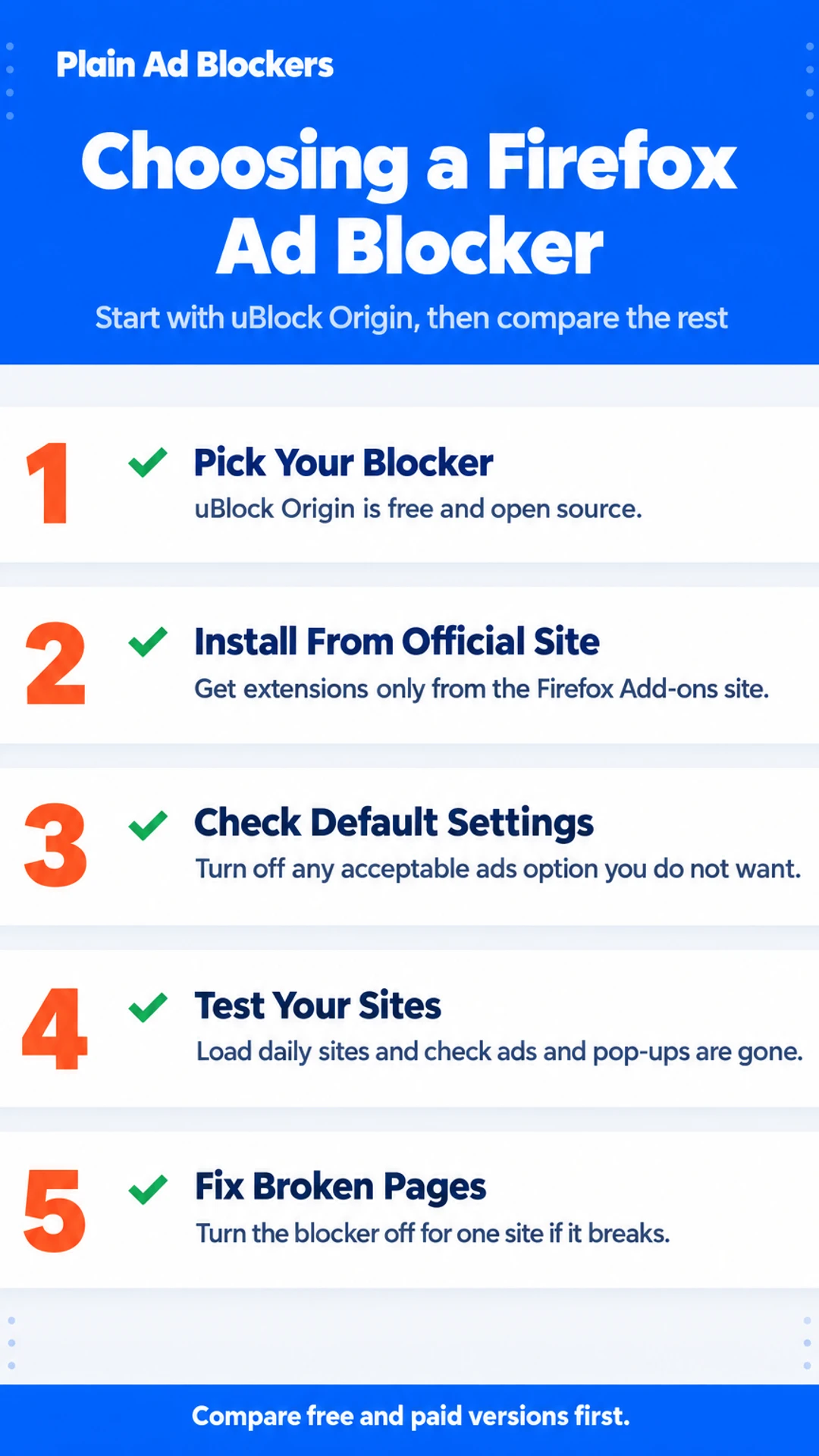
Here is the short version of how to get started:
- Decide whether you want a blocker for Firefox only or for every device you own.
- Install one extension from the official Firefox Add-ons site.
- Check its settings for anything turned on by default, such as an "acceptable ads" option.
- Load a few sites you use daily and confirm the ads and pop-ups are gone.
- Watch a YouTube video to see whether pre-roll ads are blocked.
- If a page or player breaks, turn the blocker off for that one site.
- Compare the free and paid versions before you pay for anything.
If you have ever tried to read an article and found it buried under video ads, pop-ups and autoplay, you know the problem. Pages load slowly, eat up data on a mobile connection, and follow you around the web with trackers. You want that to stop without spending an afternoon on technical settings. This guide compares the main options for Firefox, Chrome and Android, shows what each costs and what data it handles, and explains how to fix the sites that break. Start with the side-by-side summary, then read the detail underneath.
Firefox ad blockers at a glance
| Option | Cost as stated | Best for | Key feature | Notes |
|---|---|---|---|---|
| uBlock Origin | Free, open source | Users who like to tinker with settings | Lightweight, controllable filters | Most of its power is in the options |
| AdGuard | Free and paid forms | Little setup, cookie banner handling | Blocks ads, trackers, cookie pop-ups | Check current terms on official site |
| Ghostery | Not stated | People focused on tracker blocking | Simpler interface | Focuses on privacy over every banner |
| Surfshark CleanWeb | Part of a VPN subscription | Existing Surfshark users | System-wide blocking via VPN | Needs VPN active and CleanWeb on |
| Adblock Plus | Not stated | Users who know the brand | Acceptable ads program on by default | Can be turned off in settings |
Guides on this site
Which Ad Blockers Work in Firefox, Chrome and Android
Before you pick one, it helps to know where each type of blocker actually runs. A browser extension only works inside the browser it is installed in. A system-wide option works across the device. Those are different jobs, and they don't carry over to each other.
Browser extensions such as uBlock Origin and AdGuard run inside Firefox and Chrome. They block ads and trackers on websites and in your browser's video players, including YouTube in that browser. They do not touch other apps on the same device, so a game or a news app with its own ads will still show them.
Firefox for Android supports a smaller set of extensions than desktop Firefox. A pick that works well on your laptop may not be available on your phone. Check the Add-ons site on mobile before you assume a desktop choice will work there.
Chrome has the widest range of extensions, which is one reason some blockers look and behave differently there than they do in Firefox. If you are moving from Chrome to Firefox, expect small differences in settings and in what appears in the toolbar.
System-wide options work differently. A VPN app with an ad blocking mode can cover apps on your phone or computer and some TV setups as well as the browser. Surfshark's CleanWeb is one example. In one reviewer's test, CoolTechZone found that CleanWeb only worked properly with the VPN active and CleanWeb switched on, so it is a setup you need to keep running. A VPN-based blocker is not a direct swap for a browser extension, so choose based on where you need the blocking.
The Main Firefox Picks and What Each Is Best For
Most people looking for an ad blocker for Firefox end up choosing between a handful of well-known extensions. Each one suits a different kind of user, so it helps to start with what you want from it.
uBlock Origin is free and lightweight. It is a good fit if you want control over your filters and don't mind spending a little time on settings. Most of its power sits in the options, so it rewards people who like to tinker. For many users it is the default choice, and you can read more on its own page in this hub.
AdGuard is a more polished option. It blocks ads, trackers and cookie pop-ups, and it is offered in both free and paid forms. If you want something that works with little setup and handles cookie banners well, it is worth a look. Check the current free and paid terms on the official site before you install.
Ghostery focuses on tracker blocking and privacy. Its interface is simpler, so it suits people who mainly care about who is following them around the web rather than every banner on a page.
Surfshark CleanWeb is part of a VPN subscription. It makes sense if you already use Surfshark. If you only want a browser add-on, it is more than you need.
Adblock Plus is widely known. Be aware that it enables an acceptable ads program by default, which lets some companies pay to get past its block lists. You can turn this off in its settings, and the Adblock Plus page in this hub explains how.
What Ad Blockers Cost and What Data They Handle
Most of the strong ad blockers for Firefox cost nothing to install. uBlock Origin is free, open source and widely used, and it is a sensible place to start if you want a blocker that works without fuss. Other options use a free tier with paid upgrades, or bundle a blocker with a VPN subscription. Those prompts vary, so check the price on the official site before you pay for anything. A free blocker that keeps nagging you to upgrade is not really free in practice.
An ad blocker needs access to the websites you visit, which is why it deserves a careful look before you install it. Here is what to check:
- Read the permissions. Firefox lists what an extension can access before you add it. A blocker will ask to read and change data on the sites you visit. Ask what it does with that access.
- Look for a privacy policy. A developer who publishes one should say clearly whether it collects data, what it collects and why.
- Check the Firefox Add-ons site. Install blockers only from addons.mozilla.org, and read the reviews and the developer's details there.
- Skip links from unknown pages. Don't install a blocker from a link on a page you don't trust. Fake blocker pages are a common way to get unwanted software onto a computer.
Does a blocker slow down my browser?
Some do more work than others. In one hands-on test, CoolTechZone found that Adblock Plus used more CPU and memory than other blockers, and removed it after about half an hour because of the drag while keeping many tabs open. In the same test, the reviewer also said Total AdBlock worked straight away after install. Those are one reviewer's observations, not measurements from this site.
Stopping YouTube Ads in Firefox and Their Limits
If you want to stop YouTube ads in Firefox, it helps to know what an ad blocker can and cannot do. A standard ad blocker can remove many of the display ads and banners around the video, the sidebar promotions and the box that sits above the results. Video pre-roll ads are harder. YouTube serves them through the same video stream as the content, so a blocker has to work at a different level to stop them.
Some extensions take a different approach. Rather than blocking an ad outright, they speed it up or skip past it. That can get you to your video faster, even if the ad still plays.
Results depend on how YouTube is serving its ads on a given day. YouTube can also detect ad blockers and push back against them. A fix that worked yesterday may stop working today. Expect to update your extension or change your setup now and then, and do not treat any one setting as permanent.
In CoolTechZone's test of ad blockers, Total AdBlock removed YouTube pre-roll ads straight after install and a tab refresh. That test covered the browser, not every platform, so treat it as a result for Firefox and similar browsers only.
What to expect in practice:
- Display ads and banners around the video are usually the easiest to remove.
- Pre-roll video ads may be blocked, skipped or sped through, depending on the extension.
- A working setup can stop working after a YouTube change, so check it periodically.
Fixing Sites That Break and Turning a Blocker Off for One Site
Sometimes a page will not load, or a video player sits there with a spinning circle. Most of the time the blocker is the cause, and the fix is quick.
What should I try first when a page won't load?
Start simple. Refresh the page. Many breakages are temporary, and a reload lets the site and the blocker sort themselves out.
If the page still fails, turn the blocker off for that site only. Click the extension's toolbar button, then use the option to pause or disable blocking on this website. Reload the page. Your blocker stays on everywhere else, so you keep the protection on the rest of the web.
Do not switch the blocker off across the whole browser just to watch one video. That leaves you open to ads and trackers on every site you visit, and it is easy to forget to turn it back on.
When should I add a site to the allowlist?
Add a site to the allowlist only when you trust it. A news site or a shop you use often is a reasonable choice. A site you have never heard of is not, however well it seems to work.
What if the same site keeps breaking?
Check two things. First, update the extension. Updates often fix breakage on major sites, so this is worth doing before anything else.
Second, look at the filter list settings. In most blockers you can see which lists are active and whether a list is too aggressive for a particular site. Cosmetic filters, which hide page elements, can also hide something the site needs, such as a menu or a player control. Turning off a specific cosmetic filter for that site often restores it.
If you use uBlock Origin, the full settings are covered on its own page in this hub. The steps above apply to most blockers on Firefox, Chrome and Android.
Choosing a Safe Ad Blocker and Frequently Asked Questions
Any extension you install can see what you do in your browser, so it is worth checking before you add one. Use this short checklist for any ad blocker, whether it is in our list or not:
- Install from the official store. For Firefox, that means addons.mozilla.org. Avoid download links from random sites.
- Read the permissions. A blocker needs to read and change the pages you visit. Be wary if it asks for more than that, such as access to your downloads or your bookmarks, without a clear reason.
- Check the developer and update history. Look for a named developer, a clear changelog and regular updates.
- Confirm the data policy. Find out what the extension collects, if anything, and whether it sells or shares that data.
Is there a free ad blocker that costs nothing?
Yes. uBlock Origin is free and open source, so it costs nothing and its code can be inspected. Some other blockers have free tiers with limits on features or filter lists, and a paid upgrade may be offered. Check the price before you install, not after.
How do I turn on an ad blocker in Firefox?
- Open the Add-ons menu from the three-line menu at the top right.
- Search for the blocker by name.
- Select Add to Firefox, then confirm.
- Pin its icon to the toolbar so you can reach its settings quickly.
Is Firefox's built-in tracking protection the same as an ad blocker?
No. The built-in protection blocks many known trackers, but it does not give you the same control over ads. An extension lets you choose filter lists, block specific elements, and manage what runs on each site. Most users who want to stop ads on YouTube and other sites will need one.
What hands-on reviewers found
These are other people's hands-on tests, summarised and credited to them. Watch the full videos for their complete reviews.
CoolTechZone: I found the best AD BLOCKER extension | 3 Tools Compared
The reviewer thinks Surfshark's CleanWeb is the best all-round ad blocker across devices, Total AdBlock is the best simple browser-only option, and Adblock Plus should be avoided by default because of its acceptable ads program and higher r
- Adblock Plus enables an acceptable ads program by default, letting companies like Google or Amazon pay to bypass block lists. The reviewer had to disable this in settings. (at 1:04)
- Adblock Plus uses more CPU and memory than other ad blockers. The reviewer, who keeps many tabs open, felt the drag and removed it after about half an hour. (at 1:20)
- Total AdBlock worked straight away after install and a tab refresh. Display ads, pop-ups, cookie banners and YouTube pre-rolls were all gone. (at 1:38)
- Total AdBlock passed the extreme Can You Block It website test. Its cookie annihilator automatically dismissed endless cookie pop-ups. (at 1:58)
Frequently asked questions
How to block ads with Firefox?
Firefox has no built-in ad blocker that covers most sites, so you add one as an extension. Open the Firefox Add-ons site, search for an ad blocker, pick one, and click Add to Firefox. Refresh the pages you have open, and ads should stop loading on them. You can switch it on or off from the toolbar icon.
Why did people stop using Firefox?
Most people who stopped using Firefox switched to Chrome or Edge for reasons like speed on certain sites, sync with other devices, or a browser their work or school already used. Some left because a site or service worked better in another browser. Firefox is still widely used, and many of its users stay because of privacy settings and extensions like ad blockers.
Is there a free ad blocker with no catch?
Several ad blockers are free to install and use for basic blocking, including uBlock Origin on Firefox. Some free options are funded by an acceptable ads program or show prompts to upgrade. Read the add-on's listing and its settings to see whether it has an allowlist of paying advertisers. Free and open-source tools are usually the cleanest choice.
How do I turn on AdBlock?
After you install AdBlock, its icon appears in the toolbar. Click the icon and check that the switch or power button shows it is on. Then refresh the page you are viewing. If the switch is off, click it once to turn blocking on. Ads on that page should stop loading within a few seconds.
Does an ad blocker break websites?
Sometimes it does. Some sites detect blockers and stop working, or a video player or login page fails to load because a script was blocked. If that happens, you can turn the blocker off for that one site, or add the site to the extension's allowlist. The site will then show ads again while the rest of the web stays blocked.
Wrapping up
For most people on Firefox, a well-known ad blocker with a clear privacy record is enough. Check what each one costs and whether it handles video ads, then keep one site in the allowlist for when something breaks.
Which ad blocker are you using on Firefox now, and has it ever broken a site you needed? Tell us in the comments.
Visit the official site if you want a single blocker that also covers your other devices. The Surfshark Starter plan includes a VPN, Alternative ID, and an ad and cookie blocker, and its CleanWeb feature blocks ads and trackers, including video ads. Surfshark's page also mentions a 30-day money-back guarantee.