Ad Blocker For FirefoxHow to Stop YouTube Ads on Firefox: Options, Setup and Limits
How to Stop YouTube Ads on Firefox: Options, Setup and Limits
The short answer
You can block most YouTube video ads in Firefox with an extension such as uBlock Origin, AdBlock, or a YouTube-specific blocker. Install it from the Firefox Add-ons site, make sure it is enabled, and refresh YouTube. Blocking is not guaranteed. YouTube changes how it delivers ads and tests anti-blocking methods, so an extension can stop working for a while until it is updated.
Some links on this site are affiliate links: if you buy through one, the site may earn a commission at no extra cost to you. More about this.
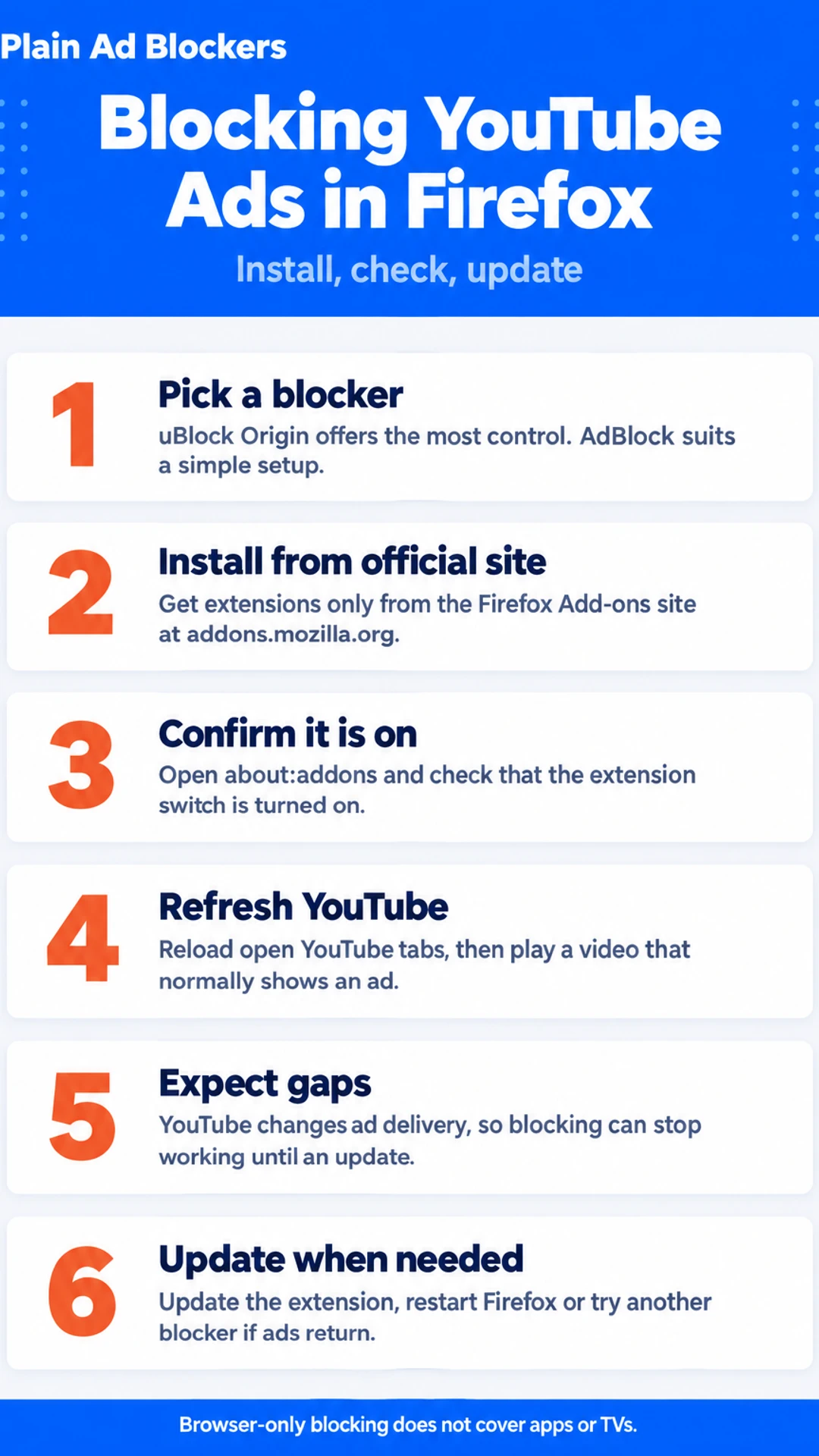
Here is the short version of how to get it working:
- Open the Firefox Add-ons site and search for the blocker you want.
- Check the number of users and the last update date before you install.
- Click Add to Firefox and accept the permissions it asks for.
- Confirm the extension is turned on in the Add-ons Manager.
- Refresh YouTube and play a video that normally shows an ad.
- Check the extension settings if an ad still gets through.
- Update the extension when YouTube changes its ad delivery.
If you have been frustrated by pre-roll ads cutting into a video, or by pop-ups and autoplay making a page hard to read, you are not alone. Ads also slow pages down and use up data on a mobile connection, and many people just want a calmer viewing experience. This page is for you if you use Firefox and want to know whether an ad blocker will work there.
You will get a clear picture of your main options, from general blockers to YouTube-focused tools, and how each one is set up. We also explain the real limits, since blocking can fail for a while after YouTube changes things. Along the way we cover how the picks were chosen and what to check for safety before you install anything.
Which Extensions Block YouTube Ads in Firefox
Most people reach for one of a few extensions to stop YouTube ads in Firefox. They all work a little differently, so it helps to pick based on how much control you want.
uBlock Origin is the one most people end up with. It is widely used for YouTube in Firefox, and it is free and open source. Out of the box it works without much fuss after you install it from the Firefox add-ons page. If you want more control, it has plenty of settings: custom filter lists, per-site rules, and a panel that shows what it blocked on the page. That extra depth is useful, but you don't need to touch any of it to get started.
AdBlock and AdBlocker for YouTube are simpler options aimed at people who want to install something and forget about it. There is very little to configure. The trade-off is that you get fewer knobs to turn, and you should check the add-on's permissions and reviews before you install it.
One reviewer in CoolTechZone's video, "I found the best AD BLOCKER extension | 3 Tools Compared," called Total AdBlock the best simple, browser-only option. That video compared several tools across devices, and Total AdBlock's Firefox setup was only one part of it, so treat that as the reviewer's view rather than a verdict on Firefox specifically.
Adblock Plus is also available for Firefox, but the same reviewer advised turning off its acceptable ads setting by default and noted higher resource use. We cover it on its own page, so we won't go into it here.
Browser-only blockers compared
| Option | Setup | Configuration |
|---|---|---|
| uBlock Origin | Easy after install | Many settings |
| AdBlock and AdBlocker for YouTube | Install and forget | Few settings |
| Adblock Plus | Covered on its own page | Not stated |
How to Install and Set Up a YouTube Ad Blocker in Firefox
Firefox handles blockers through add-ons, so the setup is short. You do not need any technical knowledge. Most of the work is done in a few clicks.
How do I install a blocker in Firefox?
- Open the Firefox Add-ons site at addons.mozilla.org.
- Type the name of the extension you want into the search box and press Enter.
- Pick the extension from the results and select the Add to Firefox button.
- Confirm the prompt that asks for permission. Firefox will then download and install it.
Only install from the official add-ons site. Fake copies can show up in search results or on other download pages.
How do I check that it is turned on?
Open the Add-ons Manager by typing about:addons in the address bar. Find your extension in the list. Its switch should be on. If it is off, turn it on.
Why do I need to refresh YouTube?
A page that was already open before you installed the blocker may still show ads. Refresh any YouTube tab you had open, or load a new one. In the test that Total AdBlock's reviewer ran on CoolTechZone's channel, the blocker worked straight away after install and a tab refresh, with pre-roll ads gone. Your results may vary, so check a video or two yourself.
Should I change the settings?
Some extensions have YouTube-specific options. Open the extension's settings from the Add-ons Manager and look for them. For most people, the defaults are the right choice. Only change a setting if you know why you want it, and note what you changed so you can undo it later.
Why Some YouTube Ads Still Get Through
No blocker stops every YouTube ad, every time. YouTube changes how it delivers ads and how it detects blockers fairly often. When it does, blockers can lag behind for a while until their maintainers catch up with a fix. So an ad that was blocked yesterday may play today.
Some ads get past even a working setup. You might see a short pre-roll ad before a video starts. Some people use accelerator-style extensions that skip or speed up these ads instead of blocking them. That is a different approach with different trade-offs. You still see the ad, just for less time, and the tool has to keep up with YouTube's changes too.
A common Reddit thread on this topic says that Firefox and its blockers work most of the time, with occasional breakage when YouTube introduces a new scheme. That matches what most users report: smooth browsing, then a rough patch after a YouTube update.
What should you do when an ad appears?
- Check that your extension is switched on for youtube.com.
- Update the extension. This is usually the first fix, and most blocker developers push updates quickly after a change.
- Refresh the page, then try the video again.
- If it still plays ads, wait a day or two and check for another update.
If you want an ad-free experience across apps and devices, a browser-only blocker will not cover everything. Setting expectations early saves frustration later.
What to Do When an Ad Blocker Stops Working on YouTube
YouTube changes how it serves video ads fairly often. When an ad starts playing again, the cause is usually one of a few simple things. Work through these in order.
Check that the extension is enabled and up to date. Open the add-ons page in Firefox, confirm the extension is switched on, and check for an update. A disabled or outdated extension is the most common reason blocking stops.
Refresh the page. Reload the YouTube tab. If the ad still plays, close the tab, open a new one, and go to youtube.com again.
Restart Firefox if the first two steps fail. This clears up problems where the extension has not picked up its filter list.
Try a different extension. Blockers respond to YouTube's changes at different speeds. If one falls behind, another may still work. Compare how it handles video ads before you commit to it.
Turn the extension off for YouTube only if it breaks playback. Some blockers cause videos to stall or fail to load. In that case, pause blocking for that site, and turn it back on once an update fixes the problem. You can learn how to do that in our guide on turning off a blocker for one site in Firefox.
If you still cannot stop ads on a device, check where you are watching. A browser extension only covers the browser. The YouTube app on a phone or smart TV is outside its reach, so the ads will keep playing there.
Limits on Firefox, Android and Other Devices
A browser extension only works inside the browser it is installed in. That means it can block YouTube video ads on Firefox on your computer, but it has no effect on the YouTube app on your phone, tablet or smart TV. If you watch mostly on a TV or in the app, an extension on your laptop will not help there.
Mobile is the other common gap. Firefox for Android supports a smaller set of extensions than the desktop version, so check the list before you rely on one. The Firefox for Android page and the Android pages on this site have more detail on which add-ons install and what they cover.
Whole-device blocking is one way around this. A VPN-based blocker runs at the device level, so it can cover apps as well as the browser. In CoolTechZone's video, the reviewer said Surfshark's CleanWeb works across apps and some TV setups, but only when the VPN is active and CleanWeb is switched on. Without the VPN running, the blocking does not apply.
Keep in mind that YouTube changes how it delivers ads often, so any blocker can stop working for a while after a change. If an ad starts getting through, check for an extension update before anything else.
Where blocking runs and where it does not
| Setting | Covered | Not covered |
|---|---|---|
| Firefox on a computer | Browser extension blocks video ads | Not stated |
| YouTube app on phone or TV | Only with a device-level VPN blocker | Browser extension has no effect |
| Firefox for Android | Smaller set of extensions | Not stated |
Turning Off a Blocker for YouTube or One Site, and Common Questions
Sometimes you want a blocker to step aside, for example on a site you trust or when a video will not load. In Firefox you can do this without removing anything. Click the extension icon in the toolbar, then use the pause or disable option for the current site. The page usually reloads with blocking off for that domain only.
You can also add YouTube to an allowlist, which tells the extension to skip it every time. Open the extension's settings, find the allowlist or "disabled sites" area, and enter youtube.com. If you want the full steps, our separate guide on how to turn off an ad blocker for one site in Firefox walks through each one.
Is blocking YouTube ads legal?
This is a question worth checking yourself. Blocking ads in your own browser is common, but YouTube's terms of service cover how you use the site, and they may say something about ads. We cannot tell you what applies to your situation, so read YouTube's own terms before you decide.
Why isn't Firefox blocking YouTube ads?
YouTube changes how it delivers ads quite often, so a blocker that worked last month may miss some of them now. Check that the extension is up to date, and that it is turned on for the page. The update and troubleshooting steps earlier in this guide cover the usual causes.
To block them more reliably over time, a filter-based blocker such as uBlock Origin is the usual choice. Our uBlock Origin setup guide for Firefox covers the settings in detail. For a side-by-side look at the options, see the Firefox ad blocker comparison hub.
What hands-on reviewers found
These are other people's hands-on tests, summarised and credited to them. Watch the full videos for their complete reviews.
CoolTechZone: I found the best AD BLOCKER extension | 3 Tools Compared
The reviewer thinks Surfshark's CleanWeb is the best all-round ad blocker across devices, Total AdBlock is the best simple browser-only option, and Adblock Plus should be avoided by default because of its acceptable ads program and higher r
- Adblock Plus enables an acceptable ads program by default, letting companies like Google or Amazon pay to bypass block lists. The reviewer had to disable this in settings. (at 1:04)
- Adblock Plus uses more CPU and memory than other ad blockers. The reviewer, who keeps many tabs open, felt the drag and removed it after about half an hour. (at 1:20)
- Total AdBlock worked straight away after install and a tab refresh. Display ads, pop-ups, cookie banners and YouTube pre-rolls were all gone. (at 1:38)
Frequently asked questions
Why isn't Firefox blocking YouTube ads?
Firefox itself does not block ads on YouTube, and most ad blockers need to be installed as an extension first. Even with an extension installed, YouTube often changes how it serves video ads, so a blocker can miss them for a while. Make sure the extension is enabled, refresh the page, and check that it is allowed to run on youtube.com.
How to block YouTube on Mozilla Firefox?
Blocking ads on YouTube in Firefox usually means installing an ad blocker extension from the Firefox Add-ons site. Open the add-ons page, search for the blocker you want, select Add to Firefox, and confirm. Then open YouTube and check that the extension's icon shows it is active on that site.
How do I permanently block ads on YouTube?
No method stays effective forever, because YouTube changes its ad delivery often. The most lasting option is to keep your ad blocker updated and let it refresh its filter lists automatically. If an ad starts getting through, update the extension first and then check its settings again.
Are YouTube ad blockers legal?
Using an ad blocker on your own browser is generally legal in most countries. YouTube's terms of service do discourage blocking ads, though, and YouTube may limit playback or show a message when it detects a blocker. Read the terms yourself and decide what fits your situation.
Do ad blockers break YouTube videos?
Sometimes they do. A blocker can stop a video from playing or cause a page to load oddly, especially after YouTube updates its player. If that happens, try reloading the page or turning off the blocker for youtube.com only, and keep the extension updated.
Wrapping up
Firefox can block YouTube video ads, but only through an extension, and the results shift as YouTube changes how it delivers ads. Keep your blocker updated and check it when an ad starts getting through.
What has worked for you on YouTube in Firefox? Share your setup in the comments.
If you want an option built to block ads and trackers, the Visit the official site page describes the CleanWeb ad and cookie blocker included in the Surfshark Starter plan, and notes a 30-day money-back guarantee.