Ad Blocker For FirefoxAd Blockers for Firefox on Android: Which Extensions Work on Mobile
Ad Blockers for Firefox on Android: Which Extensions Work on Mobile
The short answer
Yes. Firefox for Android supports extensions, so you can install full ad blockers such as uBlock Origin or AdGuard, which block video ads, banners, and trackers. Firefox also has some built-in tracking protection, but it is not a full ad blocker. Mobile has limits: fewer extensions than desktop, some ads inside apps that a browser extension cannot reach, and a possible effect on battery and memory.
Some links on this site are affiliate links: if you buy through one, the site may earn a commission at no extra cost to you. More about this.
Here is the short version of what to do:
- Check that you are on Firefox for Android, not a different browser that only looks similar.
- Open the Add-ons menu and search for a blocker by name.
- Install uBlock Origin or AdGuard and confirm it appears in your extension list.
- Turn on the blocker's filter lists so it covers more than the basics.
- Reload a page with ads and check that they are gone.
- Turn the blocker off for a site you trust if a page or video player breaks.
- Watch your battery and memory use, and remove the extension if you notice a drag.
You have probably noticed that pages on your phone are cluttered with video ads, pop-ups and autoplay. They slow things down and eat into your data plan. That is a frustrating way to read a news story. You should not have to put up with it just because you picked up your phone.
This guide sorts out which blockers actually run on Firefox for Android, what each one does, and where the mobile limits bite. I'll explain how the picks were chosen, which safety and cost questions matter, and how to switch a blocker off for one site. By the end you will know which option fits how you browse.
Can Firefox for Android Run an Ad Blocker?
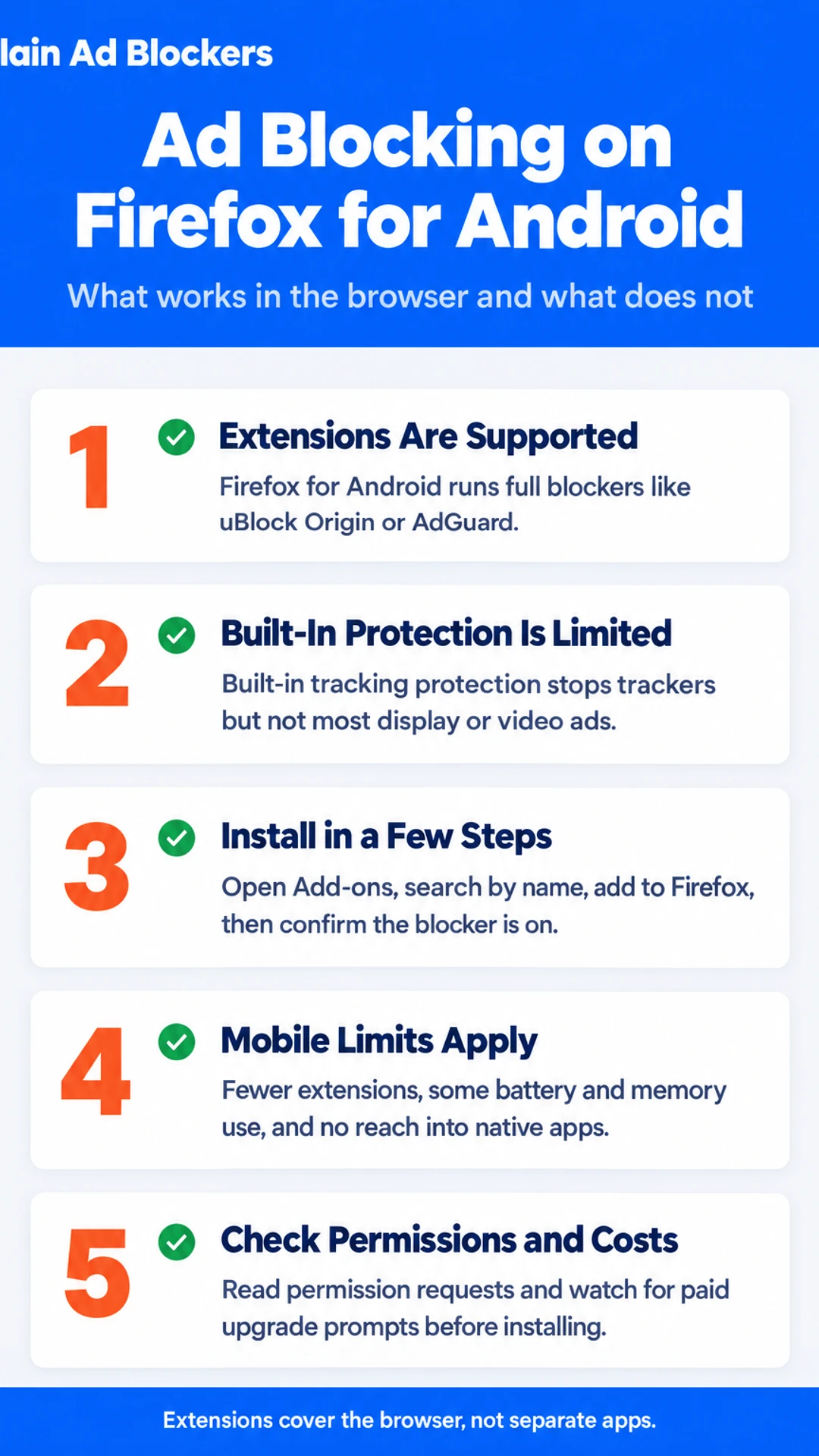
Yes. Firefox for Android supports add-ons, so you can install full blocker extensions the same way you would on a desktop. uBlock Origin is one of the most widely used options and works on Firefox for Android. Other blockers in the Firefox add-on catalog are also available, though not every extension is built for mobile, so check that it lists Android support before you install it.
Firefox also has its own built-in tracking protection. It is useful, but it is not the same as an ad blocker. It mainly stops known trackers that follow you between sites. It does not hide most display ads, pop-up banners or video ads on a page. If you want those gone, you need an extension.
There is one limit you should know about. Ads inside native apps, such as the YouTube app or the Reddit app, are outside the browser. A Firefox extension cannot touch them. If you want ads gone in those apps, you have to watch in the browser instead, or use a system-level option that covers the whole device.
Here is what to expect:
- Browser ads on web pages: blockable with an extension in Firefox for Android
- Trackers across sites: handled by built-in protection, and better with an extension
- Ads in the YouTube or Reddit app: not blockable by any Firefox extension
Plain Ad Blockers covers which extensions to look at first, but the key point is simple: Firefox on Android can run a blocker, and it will only cover what happens inside the browser.
Built-in protection versus an extension
| Option | Pros | Cons |
|---|---|---|
| Built-in tracking protection | Already on in Firefox | Does not hide most display or video ads |
| Firefox extension blocker | Blocks browser ads on web pages | Cannot reach ads inside native apps |
Which Ad Blockers Work on Firefox for Android
Firefox for Android supports extensions, which is what makes a proper ad blocker possible on your phone. Not every extension is built for the mobile version, though, so it helps to know the realistic options before you install anything.
Here is how the main choices compare:
- uBlock Origin. This is the one most often recommended for Firefox on Android. It uses little memory and blocks ads and trackers well, which matters on a phone with a few dozen tabs open. It is free and has no paid tier.
- AdGuard and Ghostery. These are more feature-heavy and lean toward privacy, with extra tools for tracking and cookie prompts. Check whether each one is currently available for Firefox on Android, and look up the current pricing before you install, since plans can change.
- Adblock Plus. In the CoolTechZone reviewer's test, Adblock Plus turned on its acceptable ads program by default, which lets some companies pay to get past its block lists. The reviewer also found it used more CPU and memory than the others. If you try it, turn off acceptable ads in the settings first.
Which one should you start with?
If you want something light that just works, start with uBlock Origin. If you want more privacy controls and don't mind a heavier extension, look at AdGuard or Ghostery. I have not tested these on Android myself, so treat this as a starting point and not a verdict.
Ad blockers compared at a glance
| Blocker | Best for | Notes from the article |
|---|---|---|
| uBlock Origin | Light, free blocking | Uses little memory, no paid tier |
| AdGuard | More privacy controls | Check current Android availability and pricing |
| Ghostery | Privacy and tracking tools | Check current Android availability and pricing |
| Adblock Plus | Ad blocking with settings | Acceptable ads on by default; uses more CPU and memory in one test |
How to Install and Set Up an Ad Blocker on Firefox for Android
Setting up a blocker on Firefox for Android takes a few minutes. You do not need any technical skills, and you do not need to change any system settings.
Step 1: Find the add-on
- Open Firefox on your Android phone or tablet.
- Tap the three-dot menu at the top or bottom of the screen, depending on your version.
- Tap Add-ons. You may need to tap Extensions first.
- Search for the blocker by name, for example "uBlock Origin" or "Adblock Plus."
- Tap the extension, then tap Add to Firefox and confirm.
Step 2: Turn it on and allow private browsing
Once it installs, the extension should switch on by default. If you use private tabs, open the extension's settings and check that it is allowed to run in them. If it is not, you will see ads in private tabs even though the blocker is installed.
Step 3: Check that it works
Refresh a page you know is full of ads. Banners, pop-ups and video ads should disappear or stop loading. If nothing changes, make sure the extension is turned on and try refreshing again.
Then open the extension's settings and look at the filter lists. Most blockers come with a default list. You can usually add more, but the defaults are enough for most people.
Keep in mind that some sites will break with a blocker turned on. You can switch the blocker off for one site when that happens.
Mobile Limits to Know About
Blocking ads on a phone works a little differently than on a laptop, so it helps to set expectations first.
The first thing you will notice is choice. Firefox for Android supports fewer extensions than the desktop version, so the list of blockers you can install is shorter. You may not find every tool you have used on a computer, so check that the one you want is listed for Android before you plan around it.
Blockers also use some battery and memory. Each one checks every request a page makes, and that work adds up. On a newer phone you probably will not notice. On an older phone, especially with many tabs open, you may see slower scrolling or pages that take longer to settle. If your phone already feels sluggish, close tabs you do not need and keep the extension list short.
The last limit is scope. A browser extension only covers the browser. Ads inside separate apps, such as games or news apps, are not touched by a Firefox add-on. For those you need a different tool, such as a system-level blocker or a VPN-based option that works across the whole device.
Be realistic about what this means for you. If you mostly read and watch video in Firefox, an extension will do a lot. If your ads come mostly from apps, the browser will not solve that part.
Free Options, Hidden Costs, and Safety
Most ad blockers for Firefox on Android are free to install and use. The catch is that some of them push you toward a paid tier. You might see an upgrade prompt on first launch, a banner nagging you to subscribe, or a feature that only works after you pay. Before you install, check the extension's listing and its settings page for words like "premium," "pro," or "subscribe." If the free version does what you need, a prompt is just an annoyance you can ignore.
Before trusting any extension with your browsing, look at what it asks for. Firefox shows the permissions list before you install, and it is worth reading. An ad blocker needs to read and change content on the sites you visit, so that permission alone is expected. Be more careful if it also asks for access to your browsing history, your data across all sites, or the ability to send data elsewhere. Then read the developer's privacy policy to see what gets collected and why.
Some blockers also allow an "acceptable ads" program by default. Under that program, companies that pay can get their ads shown anyway. If you want a clean experience, look for this setting and turn it off. Checking it takes a minute and changes how much gets through.
In CoolTechZone's review of ad blockers, the reviewer said Adblock Plus enables acceptable ads by default and had to disable it manually.
Fixing Broken Sites and Turning a Blocker Off for One Site
Blocking ads can break things. Some sites stop loading their content, buttons stop working, or a video player shows a blank box. This is the most common complaint people have about ad blockers, and it is usually easy to fix without turning the whole blocker off.
Start by using the extension's menu. On Firefox for Android, open the add-on's options from the menu next to the address bar. Most blockers let you pause blocking for the current site. Then reload the page. If the content appears, the blocker was the cause, and you can leave it paused for that site only.
If the site stays broken after pausing, check the extension's allowlist. This is a list of sites where blocking is switched off for good. Some blockers also have a way to add the current page's address from the menu. Keep the list short, and remove an entry once you no longer need it. Sites you added for a one-time problem do not need to stay on it.
Here is a simple order to follow:
- Reload the page once in case it was a loading glitch.
- Pause blocking for that site and reload again.
- If it still breaks, look at the allowlist and add the site there.
- Later, remove the site from the allowlist when you are done with it.
A site you trust, such as a news page or a shop you use often, is a fair candidate for the allowlist. A page that is covered in pop-ups is not. Keep blocking on for those.
What hands-on reviewers found
These are other people's hands-on tests, summarised and credited to them. Watch the full videos for their complete reviews.
CoolTechZone: I found the best AD BLOCKER extension | 3 Tools Compared
The reviewer thinks Surfshark's CleanWeb is the best all-round ad blocker across devices, Total AdBlock is the best simple browser-only option, and Adblock Plus should be avoided by default because of its acceptable ads program and higher r
- Adblock Plus enables an acceptable ads program by default, letting companies like Google or Amazon pay to bypass block lists. The reviewer had to disable this in settings. (at 1:04)
- Adblock Plus uses more CPU and memory than other ad blockers. The reviewer, who keeps many tabs open, felt the drag and removed it after about half an hour. (at 1:20)
- Total AdBlock worked straight away after install and a tab refresh. Display ads, pop-ups, cookie banners and YouTube pre-rolls were all gone. (at 1:38)
Frequently asked questions
Does Firefox have a built-in ad blocker?
Firefox has tracking protection built in, which blocks many known trackers and some cross-site cookies. It does not block ads in the general sense, though. For ads you need an extension, such as uBlock Origin or Adblock Plus, installed from the Firefox add-ons site. Built-in protection and an extension work together, and the extension covers the ads that tracking protection leaves alone.
Is there a 100% free ad blocker?
Several ad blockers are free to install and use for basic blocking, including uBlock Origin on Firefox. Some free tools make money in other ways, such as an acceptable ads program, so it is worth checking the settings after installing. Some services charge a subscription for extra features, and a free plan may only cover part of what you need. Read the add-on description before you assume it is fully free.
How do I turn on AdBlock?
Install the extension from the Firefox add-ons site, then open its settings or the toolbar icon to confirm it is active. On Firefox for Android, add-ons work only through the Firefox app, so install the blocker there rather than in another browser. Reload the page you are testing. If ads are still showing, check that the blocker is not paused for that site.
How to turn off ad blocker in Firefox mobile?
Open the Firefox menu, go to Add-ons and Themes, then tap the blocker's name and switch it off. To pause it for a single site, use the extension's own menu, which usually has a pause or allow option for the current page. Reload the page afterward. Turning the blocker back on works the same way, so you can switch it off only where a site needs it.
Which ad blockers work on Firefox for Android?
uBlock Origin and Adblock Plus both run on Firefox for Android, since the Firefox app supports a selection of extensions from the add-ons site. Not every desktop extension is available on mobile, so check that the one you want is listed for Android before installing. Blockers that work across the whole phone rather than inside the browser are a different category and do not depend on Firefox.
Wrapping up
Firefox for Android can run a content blocker, but only extensions it supports will work, and you have to install them inside the Firefox app. Check the add-on listing for Android support before you start.
If a blocker slows your phone or stops working after an update, tell us which one and which phone you use in the comments.